Settings
You could access personal settings via
- Personal Information page
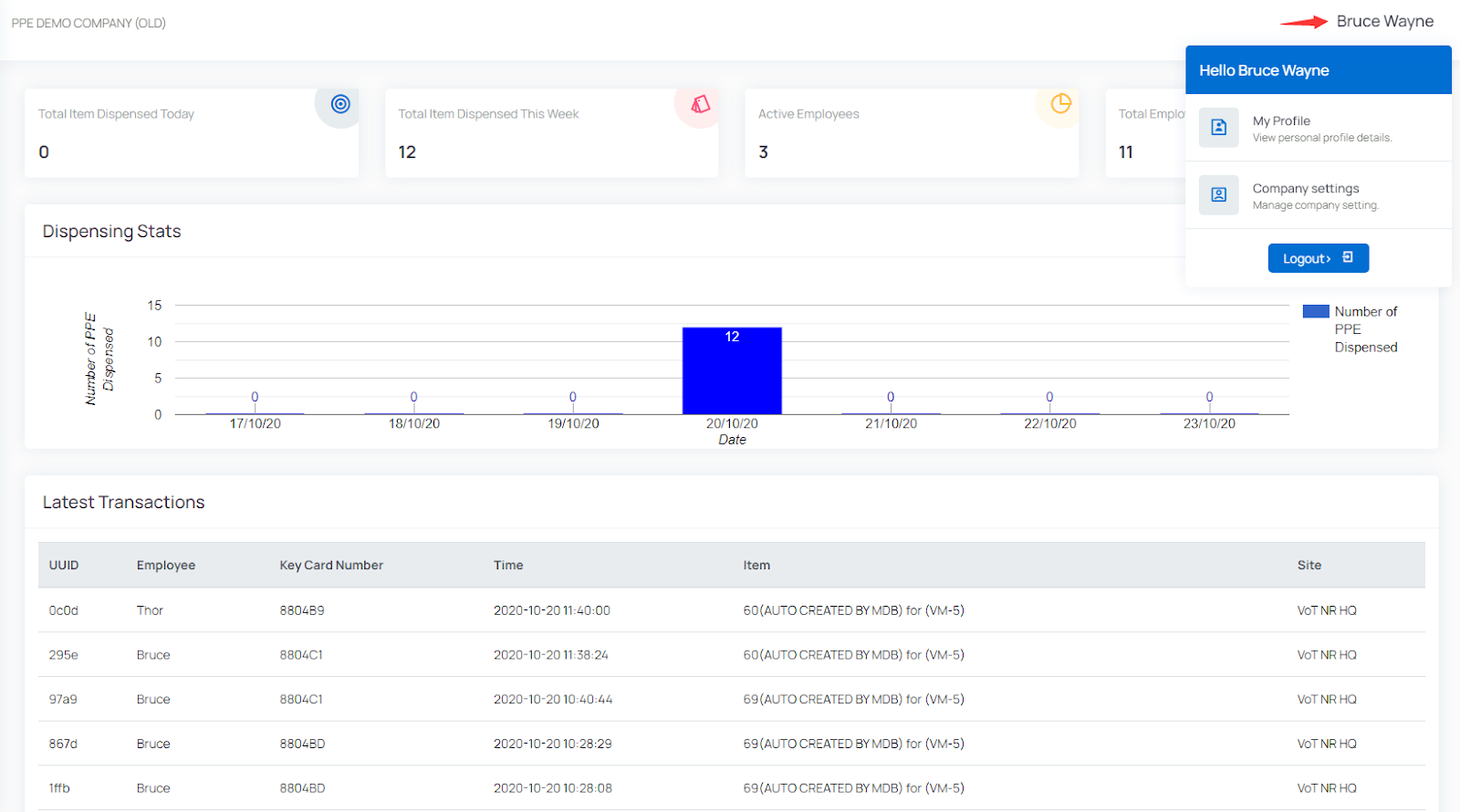
- Alternatively, you could click the “My Profile” link in the drop down menu on the top right corner as shown in the screenshot below,
Notification and email settings
All of the emails you receive from PPE Vending are controlled from the Personal Information tab of the Personal Information page. Each notification is an independent “Yes / No” dropdown, so you can turn any of them on or off individually.
The available notifications are:
| Setting | What it controls |
|---|---|
| Receive Daily Email Report | The daily summary email (sent at 11PM every day in your local timezone) |
| Receive Monthly Email Report | The monthly summary email |
| Receive Vend Failure Alert | Alerts when a vend/dispense fails |
| Receive Pending Inspection Alert (Trackable Item) | Alerts when a trackable item is pending inspection |
| Receive Drop Sensor Alert | Drop sensor alerts |
To update these settings,
- Visit the Personal Information page
- Stay on the Personal Information tab
- Set each notification dropdown to Yes (receive) or No (do not receive)
- Click the Submit button to save the settings
How to stop receiving notification emails
To stop receiving one or more emails, set the relevant dropdown(s) to No and click Submit. To stop all notification emails, set every dropdown listed above to No and click Submit.
Every notification email also includes a link in its footer that takes you straight to the Personal Information page so you can adjust these settings.
Note: The Receive Drop Sensor Alert setting can be disabled at the organization level. When that is the case, the dropdown is greyed out with the message “Drop sensor notifications have been turned off at the organization level,” and no drop sensor emails are sent regardless of your personal setting.
These settings only affect your own account and do not change what other managers in your organization receive.
Timezone Settings
To update timezone settings, follow this procedure,
- Visit Personal Information Page
- Click Timezone field
- Start typing your timezone, like Australia/Sydney or America/Los_Angeles
- Click the timezone in the dropdown menu
- Click Submit button to save the timezone update
Once it’s updated, all times should reflect your new timezone settings, including all product transactions.
If your computer/browser’s timezone setting is different than the value stored in our system, you will see warnings in the header for timezone inconsistency. You can either ignore that if you are traveling, or you could update your timezone settings.
Please note, your timezone settings is for your management account only, it won’t affect other managers in the same account. And the timezone setting is only for display purpose, all the stored events do not update based on that.
Change password
You can follow this procedure to change login password,
- Visit Personal Information page
- Click “Change Password” tab
- Input current password
- Input new password
- Input new password again in “Verify Password” input box
- Click “Submit” to verify and update password
Single Sign-On (SSO) settings
You can follow this procedure to check your SSO settings
- Visit Personal Information page
- Click “Single Sign On (SSO)” tab
Two Factor Authentication
You can enable or check your 2FA/MFA settings following this procedure,
- Visit Personal Profile page
- Go to “Two Factor Authentication” tab
If you would like to enable this feature,
- Scan the QR Code with your MFA authenticator app and follow the app to finish setup
- Input the code in the verification code input field and click “Complete 2FA” to verify your setup
Please note, once enabled, this feature could not be turned off by yourself. If you would like to disable this feature, please contact Vending on Track support or other administrators in your organization.