Secret PIN
A Secret PIN is a second step at the vending machine. After an employee enters their access code or taps their key card, the machine asks for a PIN that only they know. A lost card or a shared access code is then not enough to take items in someone else’s name.
A Secret PIN is not the same thing as an Access Code (which identifies the employee and is issued by you) or the machine’s PIN Code (which opens the admin settings on one machine).
Before you turn it on
The Secret PIN is only asked for on machines whose kiosk app supports it. A machine that has not been updated keeps signing employees in with the access code or key card alone, whatever you choose below. Nobody is locked out by turning this on, and for the same reason a machine that has not been updated is not protected by it. If you are relying on the PIN, check with your supplier that every machine on your site has been updated.
The PIN applies to signing in at the machine with an access code or key card. It is not asked for when an employee signs in to the website or mobile app by email.
Turn it on
- Visit the Organization Information page
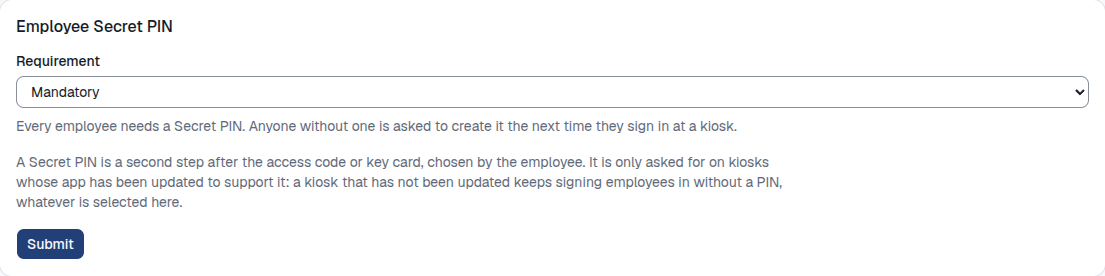
- Open the Kiosk & Sign-in tab and find Employee Secret PIN
- Choose one of:
- Disabled - employees sign in with their access code or key card only. This is the default.
- Optional - employees may set a Secret PIN. Those who have one are asked for it every time they sign in; those who have not are signed in as before.
- Mandatory - every employee needs a Secret PIN. Anyone without one is asked to create it the next time they sign in, and cannot go further until they have.
- Click Submit
The change applies from the next sign-in. Switching back to Disabled stops the PIN being asked for but does not delete the PINs employees have set; they apply again if you turn it back on.
What employees see
- Mandatory, first sign-in: after the access code or key card, the machine shows Create Your Secret PIN. The employee enters a PIN twice and saves it.
- Every sign-in after that: the machine shows Enter Secret PIN. The right PIN signs them in.
- Optional: an employee without a PIN can set one from the menu after signing in, with Set My Secret PIN. An employee with one can change it there with Change My Secret PIN, which asks for the current PIN first. This menu is the screen with Get New Item and Return Item; on machines set up to go straight to the product list there is no such menu, so set the PIN for them (below) or use Mandatory.
PIN rules
A Secret PIN is 4 to 8 digits. It cannot be the same digit repeated (7777), a run of consecutive digits up or down (1234, 8765), or the employee’s own access code.
Too many wrong PINs
After five wrong PINs in a row the PIN is locked for 15 minutes. While it is locked the right PIN is refused as well, on every machine. The employee can wait, or you can clear or replace their PIN, which lifts the lock immediately.
When someone forgets their PIN
Nobody can look a PIN up, including you: it is never shown and is not stored in a readable form. Instead you clear it or replace it.
- Visit the Employee Management page. Employees who have a PIN show Secret PIN set under their status.
- Click Edit Employee for the employee
- In the Secret PIN section at the bottom of the page:
- Clear PIN removes the PIN. In Mandatory mode the employee is asked to create a new one the next time they sign in. In Optional mode they simply sign in without one until they set a new one.
- Replace PIN (or Set PIN, if they have none) lets you choose a PIN for them. Tell them what it is; they can change it at the machine afterwards.

Both take effect immediately. The Secret PIN section is only shown while Secret PINs are in use, or for an employee who still has a PIN from when they were.
Clearing a PIN in Optional mode removes the second step for that employee until they set a new one. If their card or code may be in someone else’s hands, replace the PIN instead of clearing it, or disable the employee.