Fill Report
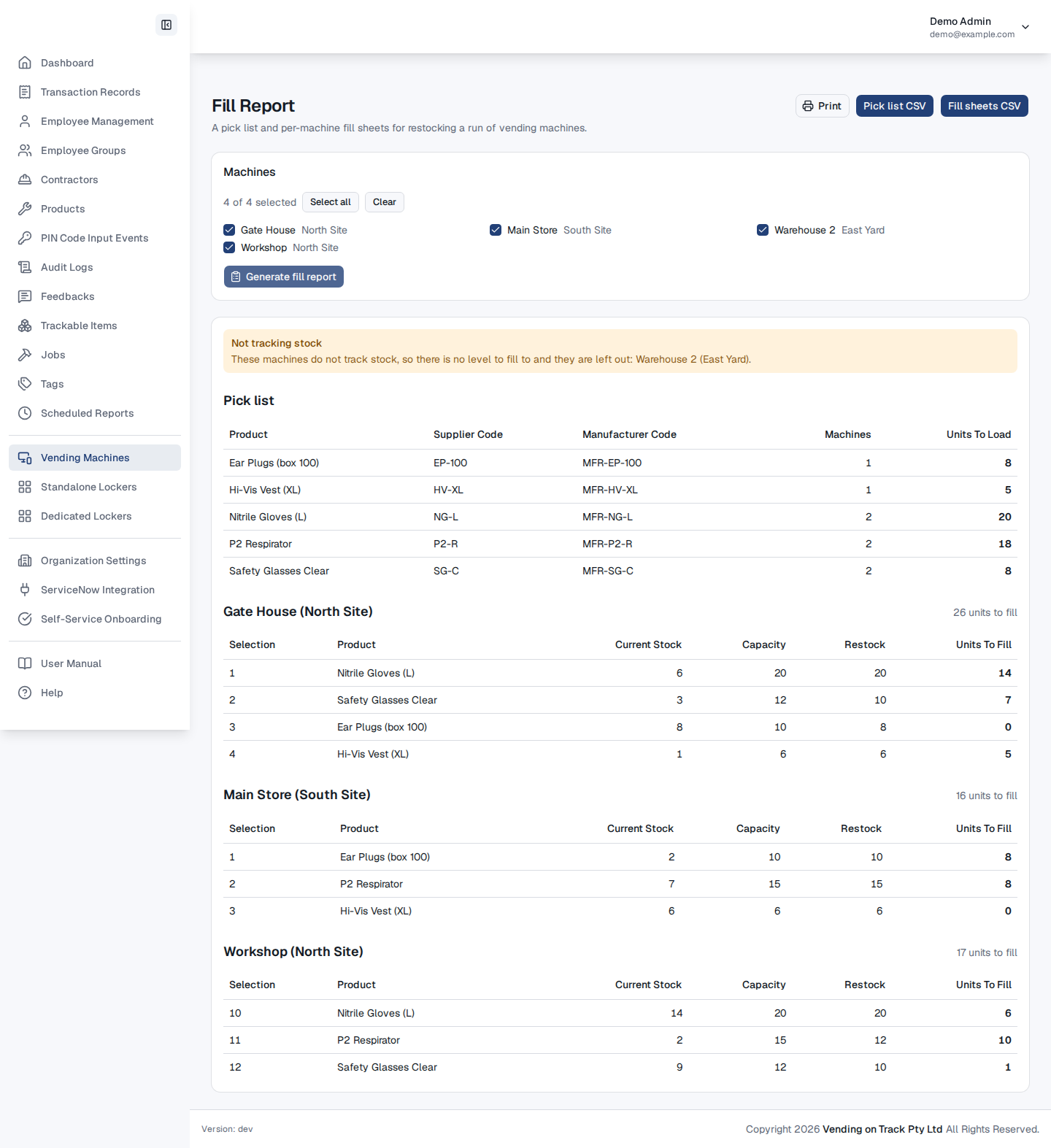
The Fill Report tells a restocker what to load before they leave the warehouse. Choose the vending machines on a run and it gives you:
- a pick list: every product the run needs and the total number of units to load across all of the chosen machines, and
- a fill sheet for each machine: every selection with its product, current stock, capacity, restock level and the number of units to fill.
Generate a fill report
- Visit the Vending Machines page and click Fill Report.
- Every active machine in your organization is selected to start with. Untick the machines that are not on this run, or click Clear and tick the ones that are. Archived machines are not listed.
- Click Generate fill report. With many machines selected this can take a few seconds.
The pick list is sorted by product name, so it reads in shelf order in the warehouse. The Machines column says how many of the chosen machines need that product. Each fill sheet lists the machine’s selections in selection-number order.
The report shows stock at the moment you click Generate fill report. If items are vended or a machine is refilled after that, generate it again.
Print or export it
Once the report has something to fill, three buttons appear at the top of the page:
- Print prints the pick list followed by each machine’s fill sheet on its own page, so you can hand one sheet per machine to whoever is doing the run.
- Pick list CSV downloads the pick list: product name, supplier code, manufacturer code, number of machines and units to load.
- Fill sheets CSV downloads one row per selection on every chosen machine, including the selections that need nothing, with the machine name and location on every row.
How the units to fill are worked out
Units to fill = Restock − Current Stock, and never less than zero.
- Restock is the standard restock count on the selection’s product map. It is used rather than Capacity because pressing Refill sets the selection’s stock to its Restock count, so filling to the Restock count keeps the website’s stock in step with what is on the shelf. If Restock is higher or lower than you actually load, correct it on the product map first.
- Current Stock is the same figure the vending machine uses to decide whether an item is in stock, and the same one Advanced Mode shows on the product map.
- A selection showing a negative stock is counted as empty, so you are never asked to load more than its Restock count.
Remember to press Refill on the Vending Machines page (or on the machine) once a machine has been filled. That is what resets its stock; the fill report does not change anything.
What is left out
- Trackable items. Each of these slots holds one individually tracked item, such as a tool, rather than a stock level, so there is nothing to fill. They are managed on the Trackable Items page.
- Machines that do not track stock. A machine with Do Not Track Stock turned on has no stock level to fill to. The report names these machines and leaves them out.
- Empty selections: a selection with no product, or with the placeholder product a machine creates by itself for a selection that has not been set up yet.
- Disabled selections: a selection whose Capacity and Restock are both 0.
Stackable items are included. A stackable locker compartment holds several of the same item and keeps a stock level like any other selection.
If a machine cannot be loaded, the report says which one and leaves it out of the totals. Generate the report again to retry it.