SFTP Credentials
Some partners deliver files to your organization automatically over SFTP. Avetta, for example, can send a daily file of your site’s workers. Each partner signs in with a login that belongs to your organization, so every file it sends is recorded against your organization and no other.
You manage these logins in the SFTP Credentials section, on the Integrations tab of the Organization Information page. Only administrators can see it, and it only appears once SFTP is available for your organization. Contact Vending on Track support if you expect it and cannot see it.
Where the partner connects
The top of the section shows the three things a partner needs besides its login:
- Host - the server’s address.
- Port - use the port shown, not the standard SFTP port 22. Partners often miss this.
- Host key fingerprint - the partner’s software shows this the first time it connects. Ask the partner to check that it matches before accepting it. A mismatch means the partner is not talking to our server.
The partner uploads into the top-level folder. Leave any directory or folder field in its software empty.
Create a login
Give each partner its own login, so you can revoke one without affecting the others.
- Enter a Label that says who the login is for, such as Avetta cardholder feed.
- Choose how the partner will sign in:
- Password: leave the public key field empty. A password is generated for you.
- Public key: paste the partner’s OpenSSH public key, the single line that starts with
ssh-ed25519,ssh-rsaorecdsa-sha2-. Never paste a private key, the one that starts with-----BEGIN. Only the partner should ever have that.
- Click Create SFTP credential.
A generated password is shown only once. Copy it before you dismiss the message or leave the page. It cannot be shown again. If it is lost, create a new login and revoke the old one.
Send the partner the host, port, username and password through a secure channel such as a password manager share, never in plain email. A login sent by email should be treated as compromised.
An organization can have up to 20 active logins.
What happens to a delivered file
Each file is applied to your organization within a few minutes of arriving. Today every file is read as an Avetta Onsite cardholder export, the daily list of your site’s workers and their access cards:
- Each active worker with a usable card becomes an employee, or stays one, holding exactly the cards in the file. Their Employee Number is their Avetta OnsiteID.
- A worker the feed added who is missing from a later file, or is no longer allowed to vend, is disabled and loses their key cards, so they can no longer vend. They are enabled again if they come back.
- Employees you added yourself are never changed by the feed.
- A file that looks wrong is refused and changes nothing: for example one that is not an Avetta export, has no card numbers, or has under half the workers of the last file.
Every file appears on the Audit Logs page as one line saying what it did, such as how many employees were created and disabled, or why it was refused. The individual changes are listed alongside it. All of them are made by an administrator named SFTP feed, which is created the first time a file arrives. It cannot sign in and holds no roles. It is listed under API Tokens (Service Accounts) rather than with your administrators; there is no need to issue it a token.
Check the feed
The SFTP Feed section, below SFTP Credentials, shows:
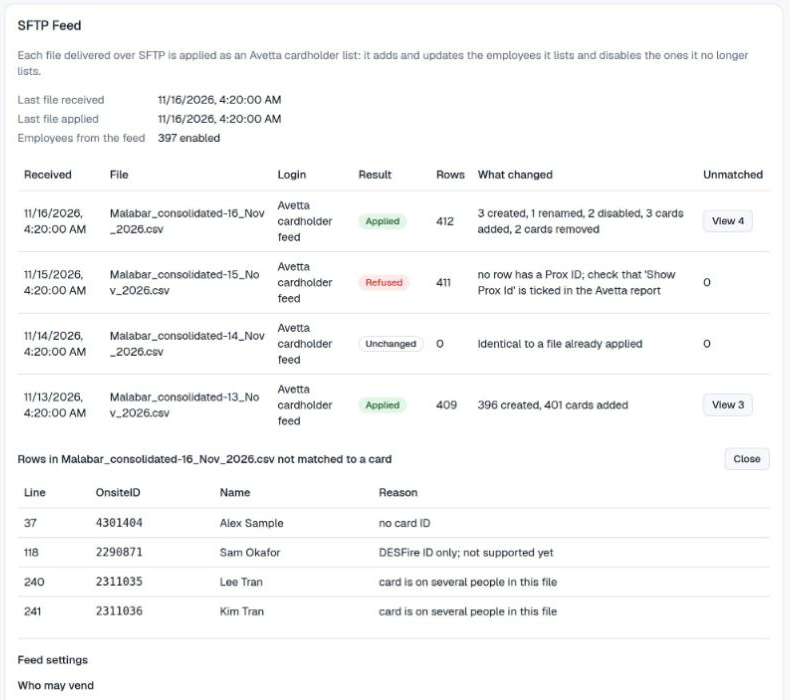
- when the last file arrived and when one was last applied, marked Overdue if a file is late;
- how many employees the feed currently has enabled;
- the last 14 files, with what each one changed, or why it was refused;
- for a file with rows that could not be matched to a key card, View lists them with the reason, such as a missing card number. Those people cannot use their site card until the row is fixed in Avetta.
Feed settings
The settings in the SFTP Feed section apply to every file from then on. Saving replaces all of them.
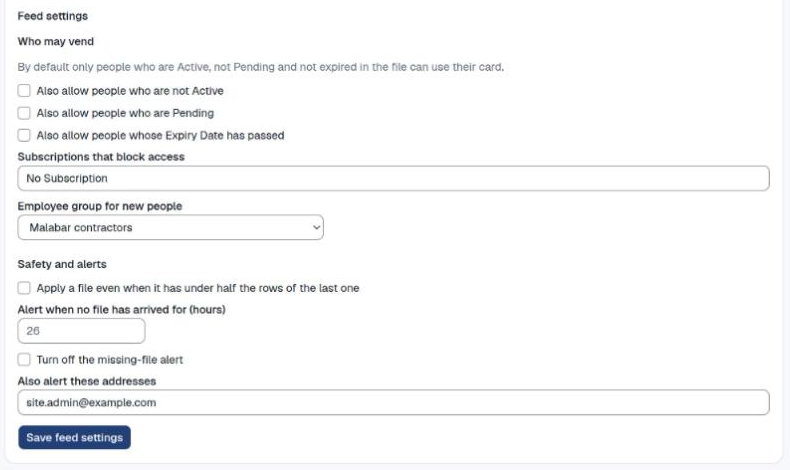
Who may vend. By default a worker can use their card only if the file shows them Active, not Pending, and with no Expiry Date in the past. Tick a box to also let in workers who are not Active, are Pending, or have expired. Each of these lets more people take PPE, so tick one only when your site’s own records are what keeps people out. Subscriptions that block access stops anyone whose Subscription column matches one of the values you enter, for example No Subscription.
Employee group for new people. The group a worker joins when the feed first adds them. It does not move anyone already added, and the feed never changes a group you give someone, so you can move people into a restricted group and they stay there.
Apply a file even when it has under half the rows of the last one. Leave this off. A file that suddenly shrinks is usually a broken export, and applying it would disable most of your site at once. Turn it on only to accept a smaller file you have checked, then turn it off again.
Alerts. Vending on Track is told, and so is every address you enter under Also alert these addresses, when:
- a file is refused;
- rows of an applied file could not be matched to a card, listing only rows that were not already unmatched in the previous file, so the same known problem is not reported every day;
- no file has arrived for 26 hours, or the number of hours you enter. This alert repeats daily until a file arrives. Turn it off while a feed is paused on purpose.
Nothing is alerted for a feed that has never delivered a file.
Rotate or revoke a login
Revoke stops a login from working immediately. A file the partner is uploading at that moment is still accepted, but any later sign-in is refused. A revoked login cannot be restored.
To change a partner’s password or key without missing a delivery, create the new login first, send it to the partner, wait until Last used shows the partner signing in with the new one, and only then revoke the old one.
Last used shows when a partner last signed in successfully, and — if it never has. Revoke a login you no longer recognize.