Month-End Invoice
The Month-End Invoice page turns a billing period’s vends into the figures you invoice from. For each period you get three things:
- Invoice lines: one line per product, with quantity, unit value and line total, plus the grand total.
- Detail: one row per vend, so your customer can check every line.
- Spend by employee: what each employee took in the period and what it was worth.
Create an invoice
-
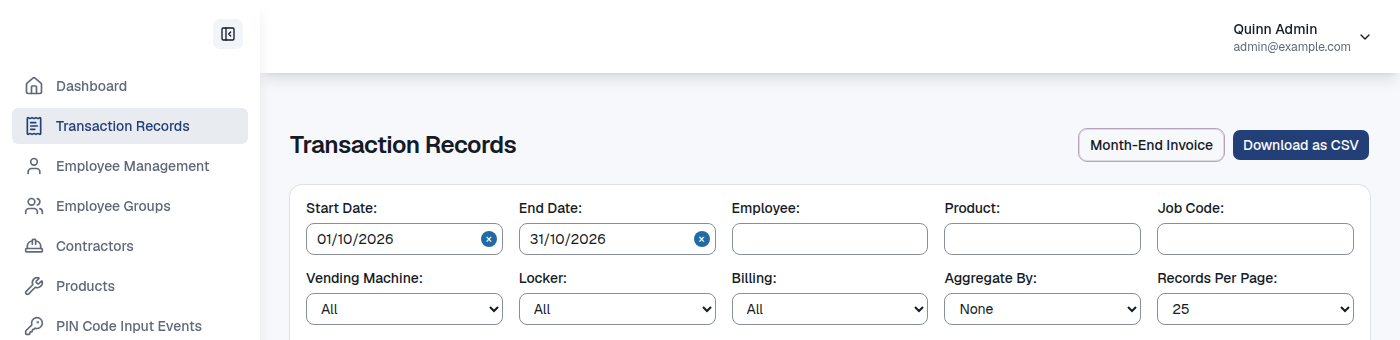
Visit the Transaction Records page and click Month-End Invoice, next to Download as CSV at the top right. The invoice is part of Transaction Records, so it has no separate entry in the menu.
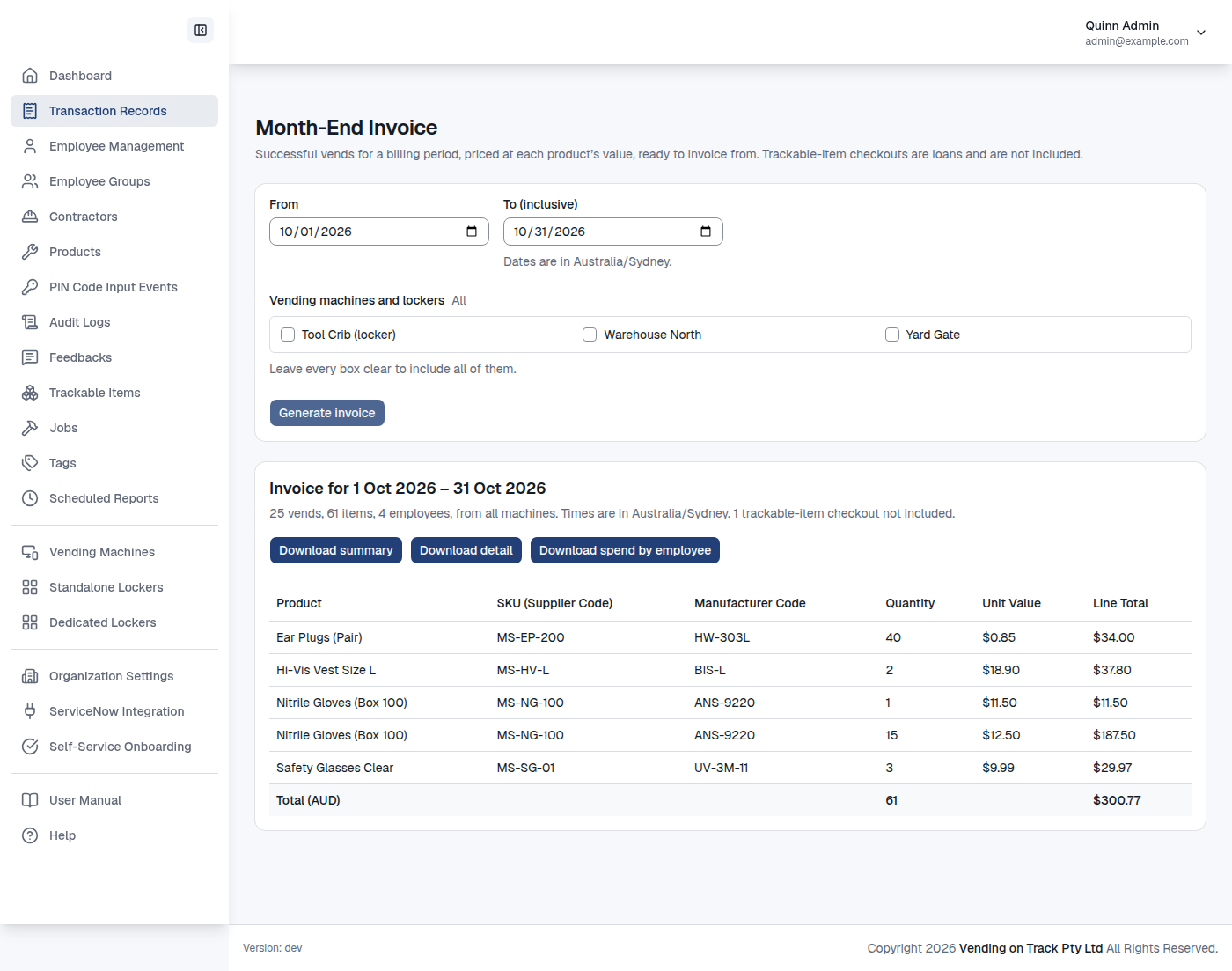
- Check the billing period. From and To (inclusive) start on the previous calendar month. The dates are in your organization’s timezone, which is set on the Organization Information page, so a vend just after midnight on the 1st falls in the new month.
- To bill some machines separately, tick the vending machines and lockers to include. Leave every box clear to include all of them.
- Click Generate invoice. A large organization can take a few seconds, and the page shows that it is loading until the invoice is ready.
The page then shows the invoice lines and the grand total, with how many vends, items and employees they cover. If nothing billable was vended in the period, it says so instead.
Download the invoice
Each download is a CSV file that opens in Excel. Amounts are plain numbers in your organization’s currency, and the column headers name the currency, for example Line Total (AUD).
- Download summary has the invoice lines: Product, SKU (Supplier Code), Manufacturer Code, Quantity, Unit Value and Line Total. A final Total row carries the grand total.
- Download detail has one row per vend: Date/Time (in your organization’s timezone), Vending Machine/Locker, Site, Employee, Employee Number, Department, Job ID, Product, SKU (Supplier Code), Quantity, Unit Value, Total and Transaction ID.
- Download spend by employee has one row per employee: Employee, Employee Number, Department, Vends, Quantity and Total, ending with a Total row.
The SKU is the product’s Supplier Code, and Manufacturer Code is shown alongside it. Both are set on the Products page. Employee Number is the number set on the employee, and is blank if none is set. It is shown for employees who have since been archived too. Department is the employee’s department today, not the department they were in at the time of the vend.
Which vends are on the invoice
Only items that were actually dispensed are invoiced:
- Included: every successful vend from a vending machine or a locker, whichever kind of machine it was made on.
- Not included: requests that were refused (a usage limit, a product restriction or missing access), and vends that failed or never finished. Nothing was dispensed for these, so they never become a transaction.
- Not included: trackable-item checkouts. A trackable item is lent out and comes back, so it is not a sale. The page tells you how many checkouts it left out.
How the amounts are worked out
Each vend is priced at the product’s value recorded at the moment of the vend, multiplied by the quantity taken. A vend made before values were recorded, or of a product that had no value then, uses the product’s current value instead. This is the same vend value Transaction Records shows.
If a product’s value changed during the period, the summary has one line for each price, so every line total is its quantity times its unit value.
A vend of a product that has never had a value is invoiced at 0, and the page warns you how many there are. Set the product’s value on the Products page and generate the invoice again. Vends with no recorded value then use the new value.
Why the total can differ from Transaction Records
Transaction Records lists every transaction, including trackable-item checkouts, and its dates are whole days in your computer’s timezone. The invoice leaves trackable checkouts out and cuts the period in your organization’s timezone. If those two timezones differ, or the period includes trackable checkouts, the two totals will not match. The invoice is the figure to bill from.